Integrating with Zscaler
When activated, ThreatStream forwards IP addresses, domains, and URLs to Zscaler on a daily basis for blocking. By default, ThreatStream will forward a maximum of 25,000 observables based on a search query that you define. If you require a different number of observables forwarded, contact Anomali Customer Support.
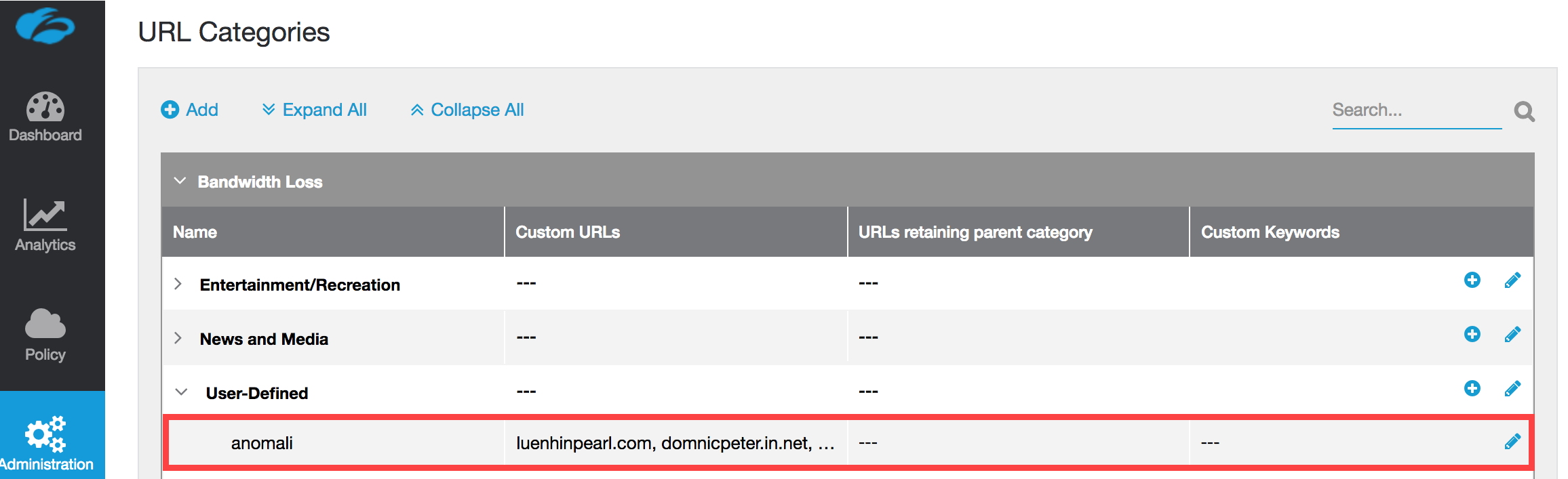
Your organization must have an account on Zscaler with API access to activate this integration. Observables are stored on Zscaler under User Defined URL Categories within anomali, as displayed below.
To integrate with Zscaler:
-
In the bottom-left corner of the side navigation panel, click
 > ThreatStream and then click Integrations.
 - Click Activate in the Zscaler box.
- Select the API Type:
- ZIA Admin API (Legacy): Uses session-based authentication with an API key, username, and password.
- OneAPI: Uses OAuth 2.0 authentication with a Client ID and Client Secret. This is the newer Zscaler API and is recommended for new integrations.
-
Configure the following:
If you selected ZIA Admin API (Legacy):
-
API Base URI (for example,
https://zsapi.zscaler.net/).
Notes:- See Getting Started in the Zscaler API documentation for information on retrieving the base URI.
-
Some Anomali customers failed to successfully integrate Zscaler with ThreatStream using the
$zsapi.<Zscaler Cloud Name>/api/v1format provided in the Zscaler API documentation. Truncating the URL by removing the/api/v1part resolved the issue.
-
API User: Username associated with the Zscaler API.
-
Password: Password for the API user.
-
API Key: Your Zscaler API Key
Notes:-
See Getting Started in the Zscaler API documentation for information on retrieving your API key.
-
See About API Key Management for information on regenerating your API key.
-
If you selected OneAPI:
-
Client ID: The OAuth 2.0 Client ID from the ZIA API Client configured in ZIdentity. See Adding an API Client for details.
-
Client Secret (optional): The OAuth 2.0 Client Secret associated with your Client ID. Must be provided if Private Key is not used.
-
Private Key (optional): Your Zscaler private key. Must be provided if Client Secret is not used.
-
Vanity Domain: Your custom domain if your organization uses a Zscaler vanity URL (for example,
anomaliforanomali-admin.zslogin.net). -
Zscaler Cloud (optional): Authentication endpoint and API base URL of your Zscaler environment.
Possible values:
beta,gov,govus, andalpha. If left blank, the integration defaults to the standard production Zscaler Cloud.
-
- Enter a Search Query that defines the subset of data you want to send to Zscaler. See Constructing Advanced Observable Search Filters for more information.
-
Select where you want to push observables in ZIA:
-
Custom URL Category (default): Pushes observables to a custom URL category in ZIA. URLs added to this category are enforced through URL Filtering policies.
-
ATP Malicious URLs: Pushes observables to the Advanced Threat Protection (ATP) Custom Malicious URLs list in ZIA. URLs in this list are evaluated by ATP before Cloud App Control and URL Filtering, helping ensure malicious URLs are blocked even when Cloud App Control policies do not cascade to URL Filtering. This option provides earlier enforcement in the ZIA inspection workflow and is recommended when ATP-based blocking is preferred.
Define how ThreatStream should update the ATP Malicious URLs list during synchronization:
-
When the ATP Append-only mode is enabled (default), ThreatStream only adds new observables to the ATP deny-list and never removes existing entries. URLs added manually, by other tools, or by previous ThreatStream synchronizations are preserved. Use this option when multiple administrators or systems manage the same ATP deny-list.
-
When the ATP Append-only modeis disabled, ThreatStream performs a full synchronization of the ATP deny-list. URLs that are no longer present in ThreatStream are removed during each push. Use this option only when ThreatStream is the sole source managing the ATP deny-list. disabled, ThreatStream performs a full synchronization of the ATP deny-list. URLs that are no longer present in ThreatStream are removed during each push. Use this option only when ThreatStream is the sole source managing the ATP deny-list.
-
-
-
Click Save.